

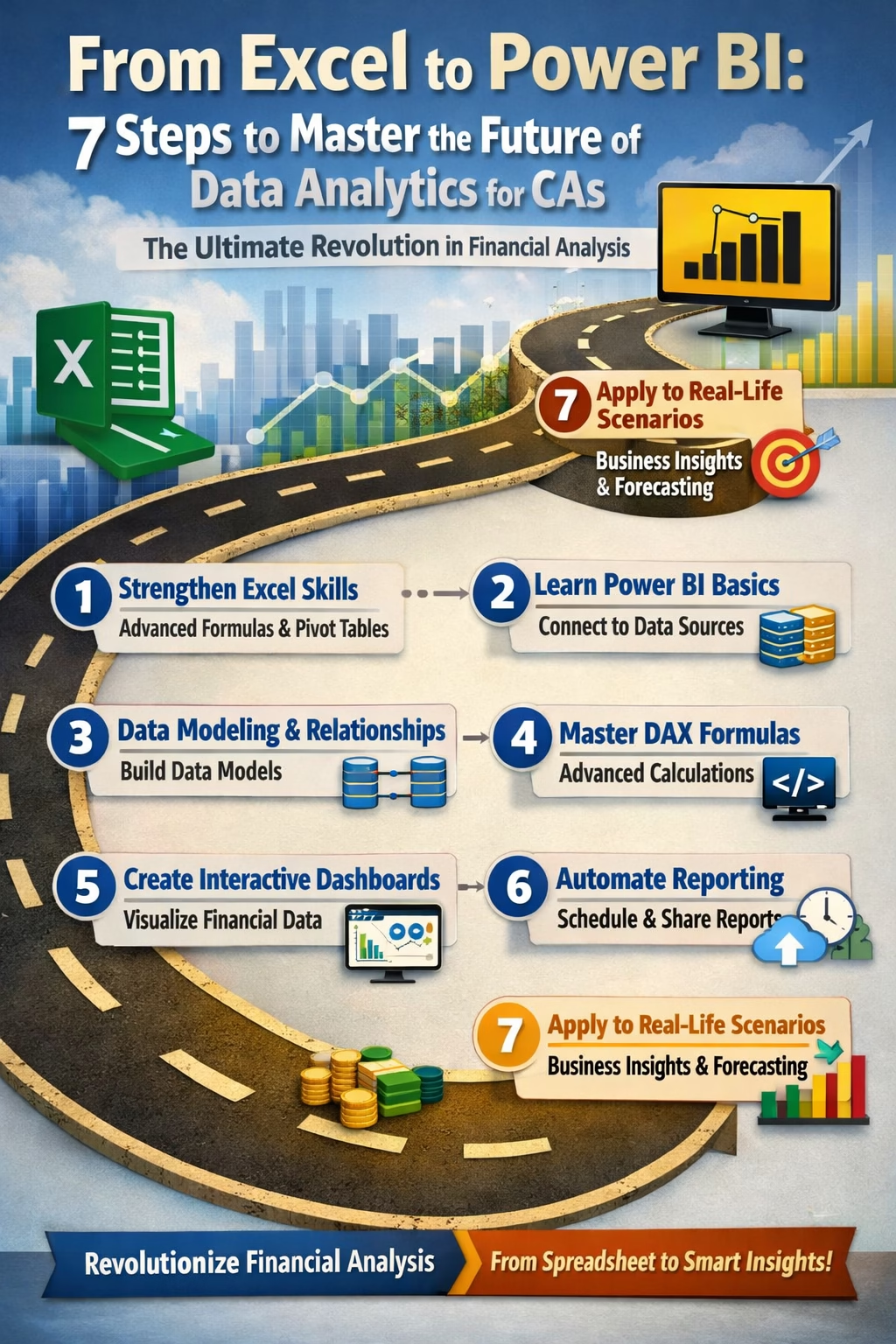
From Excel to Power BI: 7 Steps to Master the Future of Data Analytics for CAs – The Ultimate Revolution in Financial Analysis
The world of finance is changing at lightning speed. As a Chartered Accountant (CA), staying ahead in data analytics is no longer optional—it’s essential. While Excel has been the backbone of financial reporting for decades, Power BI is transforming the way financial professionals analyze, visualize, and interpret data. For CAs, mastering this tool can mean faster insights, better decision-making, and a competitive edge in the corporate world.
Here’s a step-by-step guide to Master the Future of Data Analytics for CAs and to transition from Excel to Power BI and thereby revolutionize your financial analysis skills.
7 Steps to Master the Future of Data Analytics for CAs :-
Step 1: Strengthen Your Excel Foundation
Before diving into Power BI, ensure your Excel skills are rock-solid. This includes:
- Advanced Formulas: INDEX-MATCH, VLOOKUP/XLOOKUP, SUMIFS, COUNTIFS, TEXT, and DATE functions.
- Pivot Tables & Charts: These are critical because Power BI’s data modeling is essentially a more advanced pivot system.
- Data Cleaning & Transformation: Power Query in Excel is a precursor to Power BI’s data preparation abilities.
Practical Example: A CA preparing monthly financial statements can use pivot tables to consolidate trial balance data. Once confident in Excel, importing the same dataset into Power BI becomes intuitive.
Step 2: Understand Power BI Basics
Power BI is designed for data visualization, reporting, and dashboarding. Start with:
- Power BI Desktop vs. Service: Desktop is for designing reports; Service is for sharing dashboards online.
- Data Sources: Learn to connect Power BI to Excel, SQL databases, ERP systems (like Tally, SAP), and cloud storage.
- Interface Familiarity: Explore Fields, Visualizations, Filters, and the Ribbon menu.
Practical Example: A CA working in audit can connect Power BI to multiple Excel sheets of client transactions, consolidating them automatically without manual copy-pasting.
Step 3: Learn Data Modeling and Relationships
Power BI is data-driven, not just formula-driven like Excel. Understanding data relationships is key:
- Tables & Relationships: Use primary and foreign keys to connect datasets.
- Star & Snowflake Schemas: Simplify reporting and improve performance.
- Measures & Calculated Columns: DAX (Data Analysis Expressions) is Power BI’s formula language.
Practical Example: Imagine a CA in corporate finance needing a consolidated view of sales, expenses, and taxes across multiple branches. Creating relationships in Power BI automatically updates dashboards as new data comes in.
Step 4: Master DAX Formulas
DAX is the “power behind the power” in Power BI. It allows you to create complex metrics such as:
- Total revenue growth month-over-month
- Year-to-date (YTD) or quarter-to-date (QTD) financials
- Profit margin analysis by department or segment
Practical Example: While auditing, a CA can use DAX to flag unusual expense trends or identify top revenue-contributing clients in seconds—something that might take hours in Excel.
Step 5: Create Interactive Dashboards
Visualization is Power BI’s biggest strength. Learn to:
- Use slicers, filters, and drill-downs for interactive insights
- Create KPIs and visual alerts for financial ratios
- Customize charts for clarity (bar, line, pie, waterfall, funnel, etc.)
Practical Example: A finance manager can use a Power BI dashboard to visualize cash flow trends in real time, instantly spotting liquidity issues across subsidiaries.
Step 6: Automate Reporting and Collaboration
One of Power BI’s practical benefits is automation:
- Scheduled Data Refreshes: Reports update automatically when source data changes.
- Collaboration: Share dashboards securely with clients, managers, or audit teams.
- Alerts & Subscriptions: Get notified when a financial KPI breaches thresholds.
Practical Example:Master the Future of Data Analytics for CAs: In statutory audits, instead of sending multiple Excel sheets every week, CAs can provide clients with a live Power BI dashboard that updates as transactions are posted.
Step 7: Integrate Real-Life Business Scenarios
The true test is applying Power BI in practical financial situations:
- Cost Analysis: Break down department expenses and find savings opportunities.
- Revenue Forecasting: Combine historical sales data with predictive models to forecast growth.
- Compliance Monitoring: Track GST, TDS, and statutory deadlines visually.
- Client Reporting: For audit and advisory services, deliver interactive dashboards rather than static reports.
Real-Life Scenario:Master the Future of Data Analytics for CAs: A CA in a retail company can link POS data, inventory, and GST reports to a Power BI dashboard, instantly spotting discrepancies, trends, and tax compliance issues—all without manually reconciling hundreds of entries.
Conclusion
Master the Future of Data Analytics for CAs:
The transition from Excel to Power BI is not just about learning a new tool—it’s about embracing the future of financial analysis. For CAs, mastering Power BI means more than efficiency; it means delivering insights that drive business decisions in real-time.
By following these 7 practical steps to Master the Future of Data Analytics for CAs, you can upgrade your analytics skills, automate repetitive tasks, and present financial data in a dynamic, decision-oriented way.
💡 Pro Tip: Start with a small dataset in Power BI, replicate your Excel reports, and gradually move to real business datasets. This makes learning smooth, practical, and directly applicable to your CA work.
🔗 Join 10,000+ CA Students using our Test Series to study smarter and create your own academic brand. Structured tests with detailed feedback.